Polyline width is a quick way to draw a thick line: a road strip, a wall, a pipe, a heavy symbol. It looks fine on screen. But sometimes you need that thick line to be an actual filled shape, with real edges that you can edit as a hatch boundary. A polyline with width is not that. It is one centreline with a width value.
The manual way, and why it hurts
To turn a wide polyline into a hatch by hand you copy the polyline, set its width to zero, offset it half the width to each side, draw two short lines to close the ends, join everything into one boundary with PEDIT, run a SOLID hatch inside it and delete what you no longer need. For a closed polyline you hatch the space between the two offset rings instead.
That is a dozen commands for one polyline. With arcs in the line, or with twenty polylines to convert, it becomes the sort of job that people put off.
What PLHT does
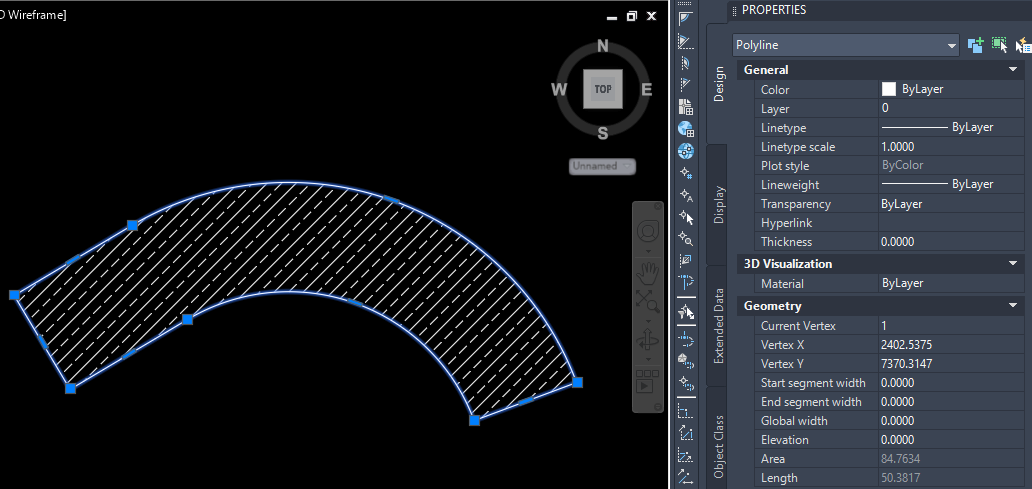
PLHT is in TerraDraft Lite and TerraDraft Pro, and it runs exactly that routine for you. For each selected polyline it makes a zero-width copy, offsets it by half the width on both sides, caps the ends for open polylines, joins the pieces, and creates a SOLID hatch that is associative and annotative. The original wide polyline is erased. The new outline polylines are kept, so you can still edit the hatch through its boundary later.
Closed polylines become a ring: both the outer and the inner outline are hatched, so the middle stays empty.
Step by step
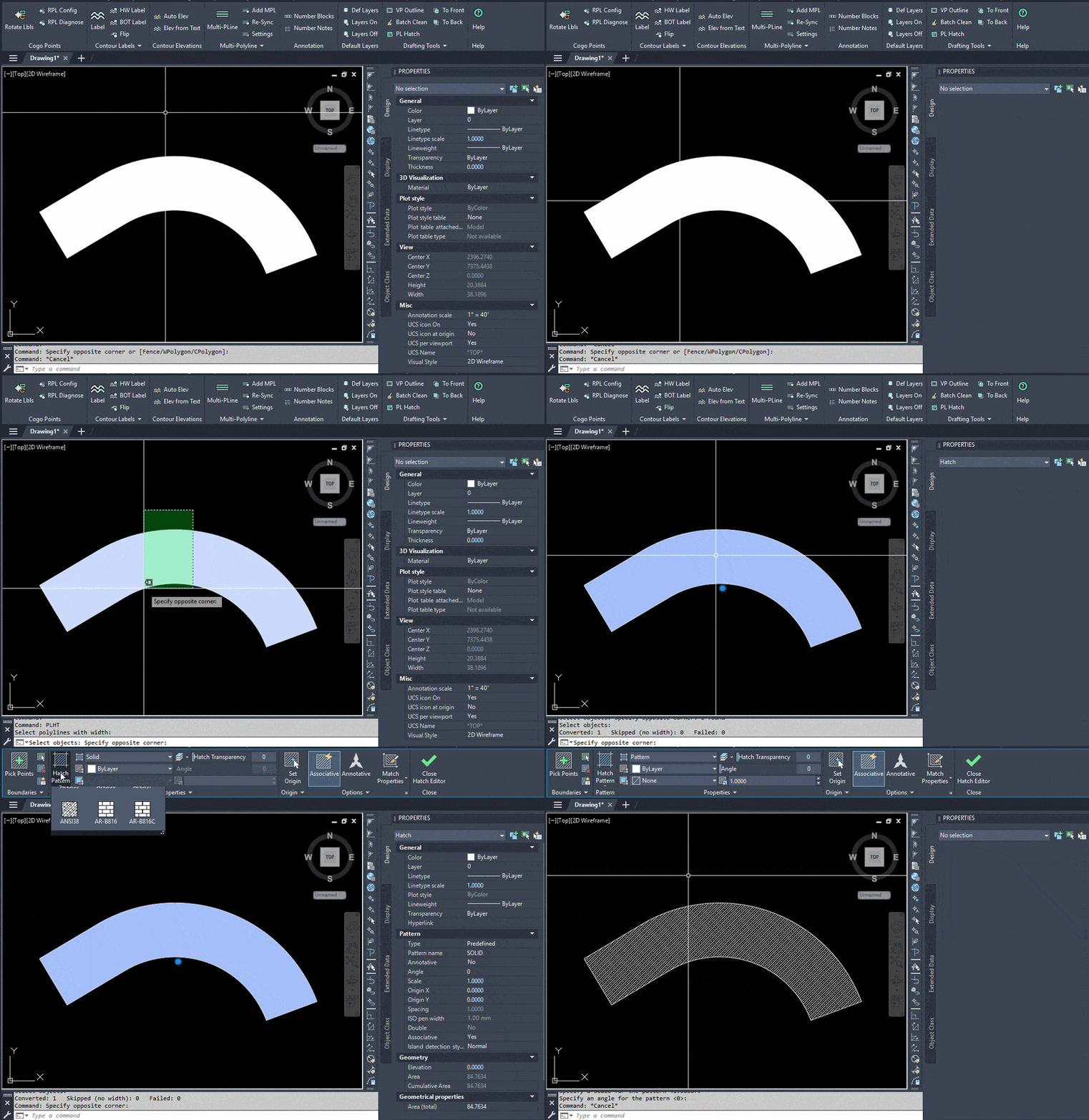
- Type PLHT and press Enter.
- At Select polylines with width: pick polylines one by one, or use a window or crossing selection. Press Enter when the selection is complete.
- Wait for the command line report: Converted: N Skipped (no width): N Failed: N.
- Check the result. The wide polylines are gone, and each has been replaced by a solid hatch with its outline.
If none of the selected polylines has any width, the command says Selected polylines have no width. and changes nothing. If nothing is selected, you get Nothing selected.
Tips and common mistakes
- Variable width becomes constant. If the width changes along the polyline, PLHT uses the largest width found, so tapers come out as a constant-width band.
- What it accepts. LWPOLYLINE and 2D polylines, including spline-fit ones. 3D polylines are not converted, and zero-width polylines are counted as skipped.
- The original is erased. If you want to keep the wide polyline, copy it first, or save the drawing before you run the command.
- The new outlines land on the same layer as the original polyline while the hatch uses the current layer.
- System variables are touched, then restored. While it runs, PLHT temporarily changes CMDECHO, FILLMODE, OSMODE, PEDITACCEPT, HPASSOC and HPISLANDDETECTION and puts them back afterwards. Object snaps are off during the command.
- Start small. PLHT runs COPY, OFFSET, PEDIT and HATCH for every polyline. Try it on a few polylines before you select a whole drawing.
Where it fits with other tools
Wide polylines often come from linework that has a centreline and a width, such as pipes or kerbs. If you draw that kind of linework with parallel offsets, take a look at the MPL multi-polyline command and its auto-sync version in Pro.
Lite and Pro
PLHT is the same in both editions. It is not a Pro-only feature, so you can use it in the free TerraDraft Lite. Only one edition should be installed at a time.
Try it
PLHT is included in the free edition: download TerraDraft Lite. It was built and tested on AutoCAD 2025 and runs on Windows in full AutoCAD (not LT). The extra Pro tools are on the TerraDraft Pro page.
TerraDraft Lite vs Pro
Try it on your own drawing
TerraDraft Lite is free to download.