The hatch is hiding your text again
You add a solid hatch for a pond, a pavement area or a mask, and suddenly it sits on top of the contours and labels you needed to see. Nothing is wrong with the geometry. The objects are simply stacked in the wrong order, and you have to fix it before the sheet goes out.
The usual way to change draw order
AutoCAD already has a command for this: DRAWORDER. You select the objects, then choose an option from the prompt: Above objects, Under objects, Front or Back. You can also reach the same options from the right-click menu or from a ribbon drop-down.
It works fine. The catch is that every change is a few steps: start the command, select, pick the option, and for Above or Under, pick a reference object too. When you are tidying a busy drawing and moving things up and down all afternoon, those extra steps get tedious. And there is no way to add those to your alias using the standard autocad way.
Four short commands that pick the option for you
TerraDraft Lite and Pro include four command-line shortcuts. Each one runs DRAWORDER for you with the option already chosen:
- DF: bring the selected objects to the front
- DB: send the selected objects to the back
- DAO: bring the selected objects above another object
- DBO: send the selected objects under another object
That is all they do. They do not create anything and they do not change layers or properties. They are just a shorter way to type the same AutoCAD command.
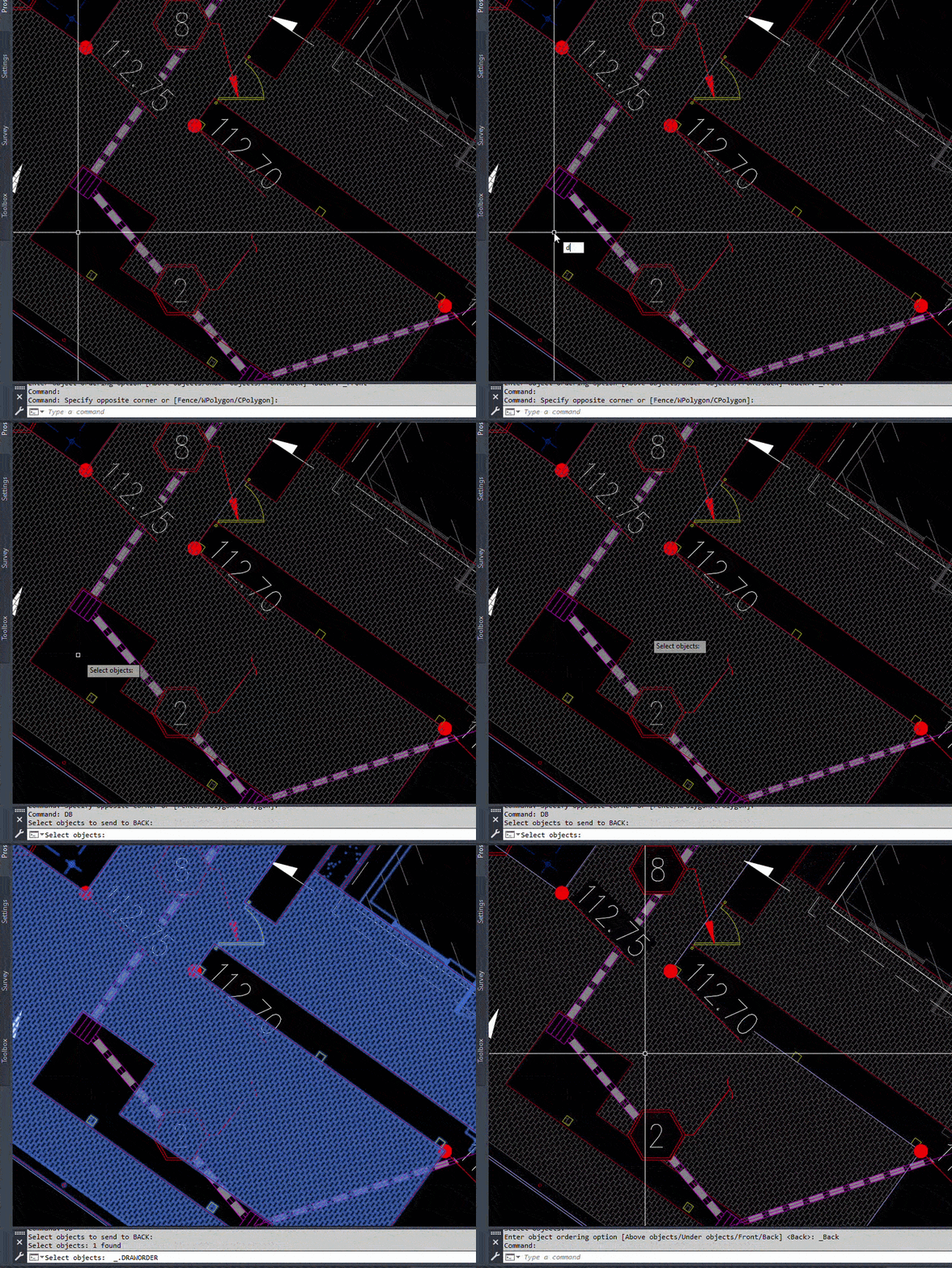
How to use DF, DB, DAO and DBO
- Type DF, DB, DAO or DBO and press Enter.
- Read the prompt. For example, DF says
Select objects to bring to FRONT:and DB saysSelect objects to send to BACK:. - DAO says
Select objects to bring ABOVE another object:and DBO saysSelect objects to send UNDER another object:. - Select the objects with any normal method (click, window, crossing) and press Enter.
- With DF and DB you are done. The order changes right away.
- With DAO and DBO, AutoCAD then asks you to pick the reference object. Click it, and your selection is placed directly above or under that object.
- If you press Enter without selecting anything, you get
Nothing selected.and nothing changes.
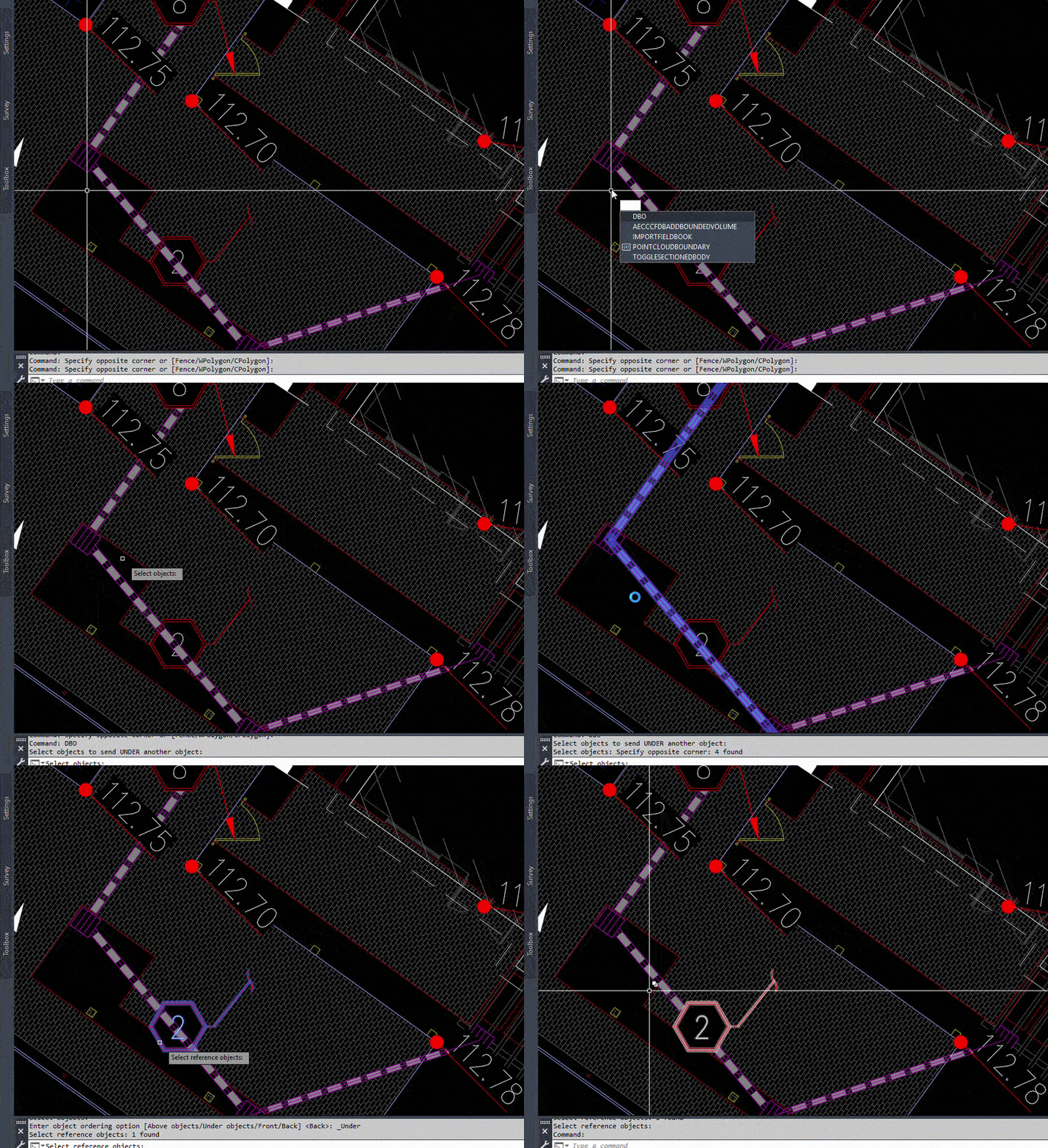
When to use Above and Under instead of Front and Back
Front and back push objects to the very top or bottom of the stack. That is often what you want for a mask or a background hatch. But on a crowded drawing, sending something all the way back can bury it under things you did not think about.
DAO and DBO place the selection relative to one specific object. If a hatch only needs to sit under one polyline, say so, and leave the rest of the order alone.
Draw order comes up with other TerraDraft tools too. VPO draws a viewport outline in model space, and PLHT turns wide polylines into solid hatches. In both cases you may want to nudge the new objects up or down afterwards, and these shortcuts make that quick.
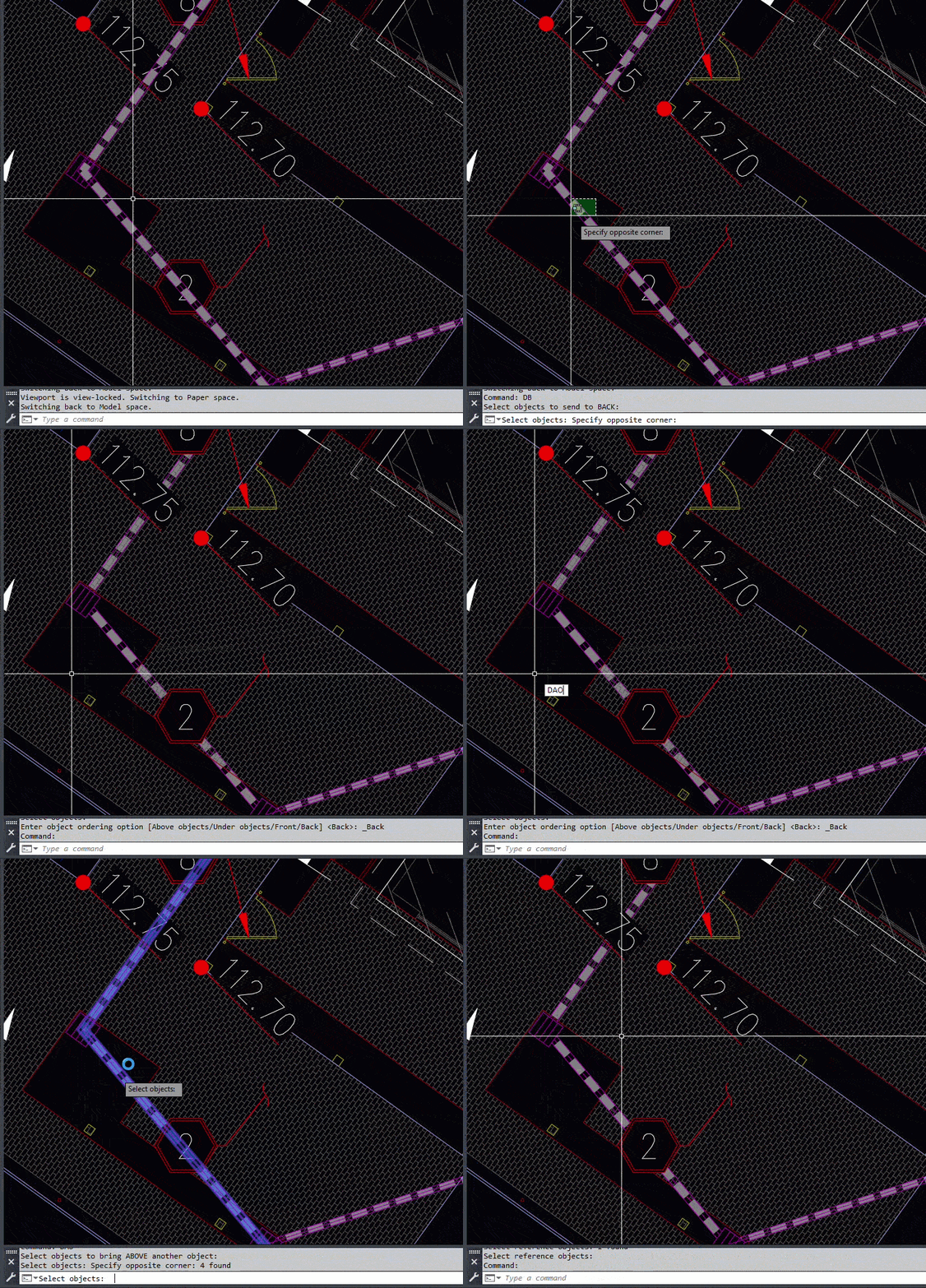
Tips and common mistakes
- These are shortcuts for
DRAWORDER, so they have the same limits. Draw order applies within the current space, so model space and a layout are handled separately. - For DAO and DBO, select your objects first. The reference object comes second, after you press Enter.
- A command that moves your selection to the front also moves it above things you may want on top. If something else disappears, use DAO or DBO for a more precise fix.
- On the TerraDraft ribbon, Above and Under are in a slide-out of the Drafting Tools panel. You can also just type the commands.
- TerraDraft is built and tested on AutoCAD 2025. It runs on Windows with full AutoCAD, not AutoCAD LT.
Lite and Pro
All four commands are in both TerraDraft Lite (free) and TerraDraft Pro, and they behave the same in each. Install one edition at a time, not both.
Try the draw order shortcuts
Download TerraDraft Lite (free) and type DF in a drawing where something is hidden. If you want the rest of the toolset, see TerraDraft Pro.
TerraDraft Lite vs Pro
Try it on your own drawing
TerraDraft Lite is free to download.