
Forty identical blocks, forty numbers to type
You have a row of identical tag blocks: manholes, stalls, lots, test points. Each one has an attribute waiting for a number, and the numbers have to run in order along the drawing.
The manual way
The usual method is to double-click a block, open the Enhanced Attribute Editor, type the number, click OK, and repeat. It is simple, and for five blocks it is fine. For a long row it is slow, and one skipped or repeated number is easy to miss until someone else spots it. If the order changes, you edit them again.
What MNUM does
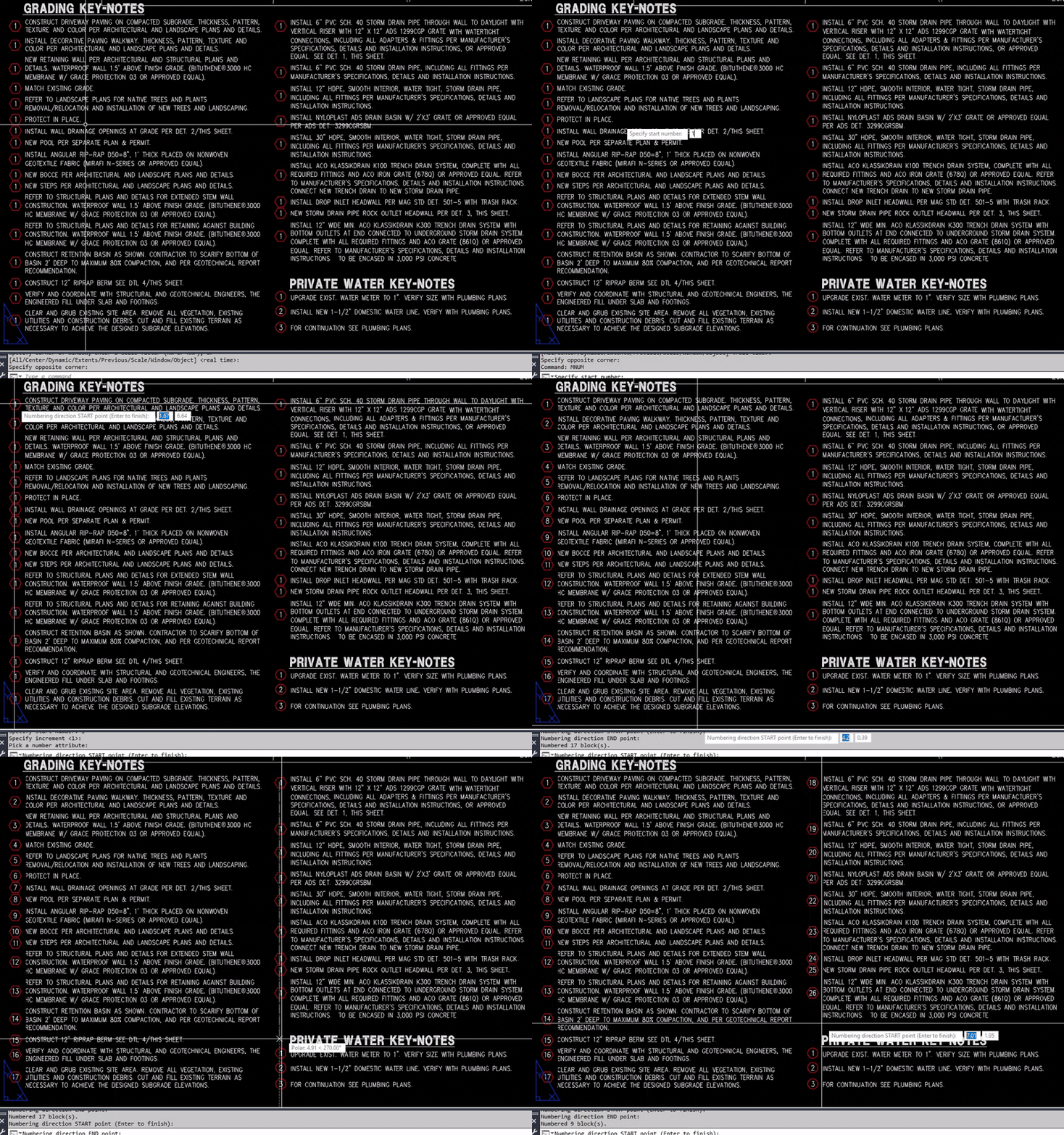
MNUM numbers one attribute across a row of identical blocks. You give it a start number and an increment, pick the attribute, and draw a line in the direction you want the numbers to run. Every block of the same name that your line crosses is numbered in order along that line. It is part of TerraDraft Lite and Pro.
It keeps counting. After one line it asks for another direction, so you can number a second row, or a row that bends, and the sequence carries on.
The increment lets you skip numbers on purpose. A start of 5 with an increment of 5 gives 5, 10, 15 and so on. The blocks themselves are not moved or changed in any other way. Only the value of the attribute you picked is rewritten.
Step by step
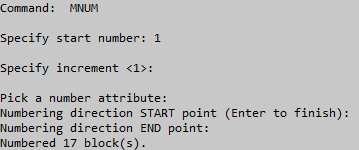
- Type MNUM and press Enter.
- At
Specify start number:type the first number. The number of characters you type sets the padding, so001gives 001, 002, 003 and so on. - At
Specify increment <1>:press Enter for 1, or type another whole number. - At
Pick a number attribute:click the attribute text inside one of the blocks. If you miss, it saysNo attribute selected, try again.and asks again. - At
Numbering direction START point (Enter to finish):click a point before the first block. - At
Numbering direction END point:click a point past the last block, so the line crosses all of them. - The command line says
Numbered N block(s).and then asks for another direction line. Draw another to keep counting, or press Enter to finish.
Tips and common mistakes
- Numbers only. The start value is read as a whole number, so letters or labels like A1 are not supported.
- The increment must be a positive whole number. Zero and negative values are not accepted.
- Only blocks with the same name as the one you picked are numbered, and only the attribute with the same tag. Dynamic blocks are matched by their effective name.
- The order follows your line, not the order you selected things. Draw it in the direction the numbers should run.
- Make sure the line actually crosses each block. If it misses everything, you get
No blocks crossed by that line. - Each line is one undo step, so a single
Uundoes the last row you numbered. - Click the attribute text itself when the command asks you to pick it. Clicking the block outline is not the same thing, and the command will ask again.
- If your blocks are not in a straight row, draw one line per straight stretch. The count continues from one line to the next, and you press Enter when you are done.
- Pad with zeros by typing them: start with
001for three digits, or1for none.
Related tools
If the numbers belong next to paragraphs of text rather than blocks, see AUTONOTE for numbering MTEXT notes. MNUM uses a line you draw across objects in much the same spirit as the fence in ACE, which sets contour elevations.
Lite vs Pro
MNUM is in both TerraDraft Lite (free) and TerraDraft Pro, and works the same in each. Only install one edition at a time. TerraDraft is built and tested on AutoCAD 2025.
Try MNUM
Download TerraDraft Lite (free) and number your next row of blocks. If you want the rest of the toolset, see TerraDraft Pro.
Try it on your own drawing
TerraDraft Lite is free to download.