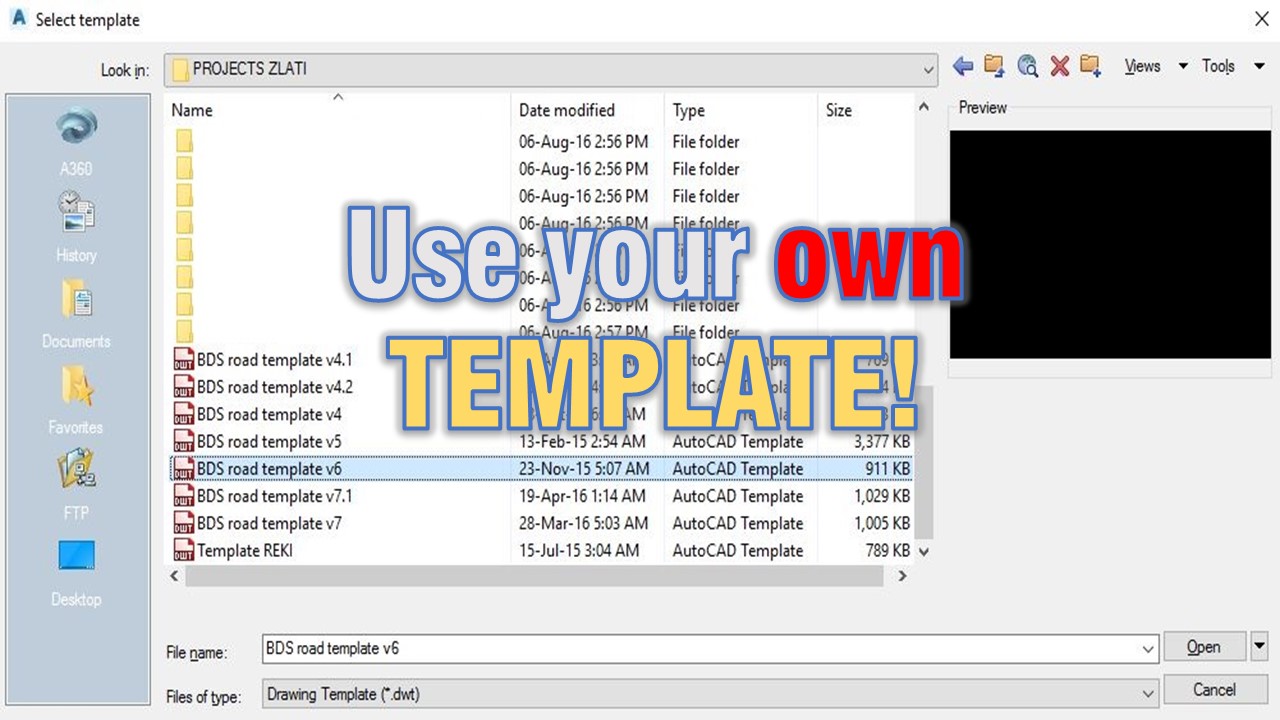
The Title says it all, use your own Template! I hate when we at the office receive drawing  with only one layer - Layer 0, Aahhh it can’t be worst (well for example if coordinates are wrong or local it could be..). Sometimes we will receive a drawing with some layers but only a few and it is really, really annoying to work with such drawing.
So don’t be one of those people who are using only one or two layers and are too lazy to click 2 times with the mouse. It won’t only help your colleagues, but will help you too!
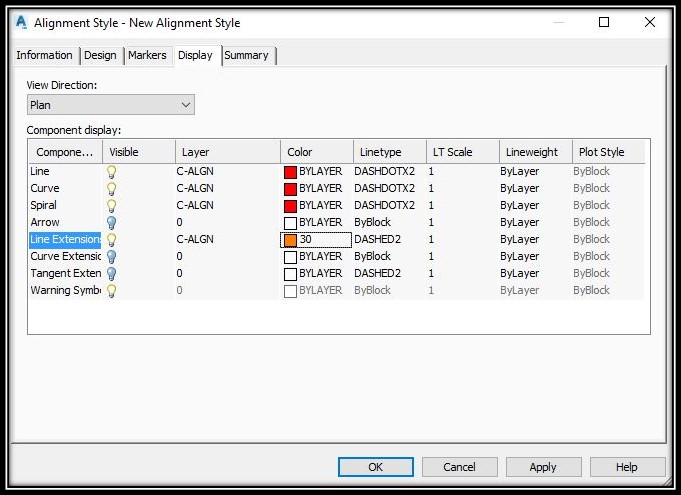
Now when you are using Civil 3d it comes with preset templates for all it’s objects, but usually we drafters create new that suits our needs the best. Upon making new Alignment style for example you can set it’s default layer it will be layer 0 but we can change it to C-ALGN for example, this will help us isolate alignments easier when our drawing becomes full of information. I recommend you to use unique layers, different from someone else’s, that way it will be easier to keep track on your work.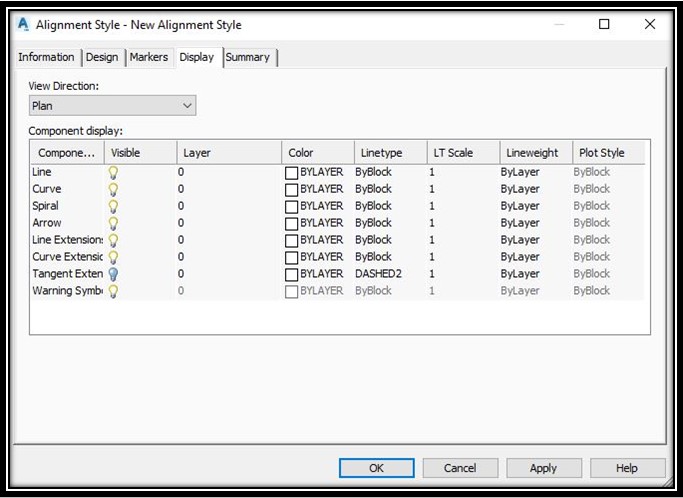
If you are using Custom Template which has all the objects set, but they are all drawn in 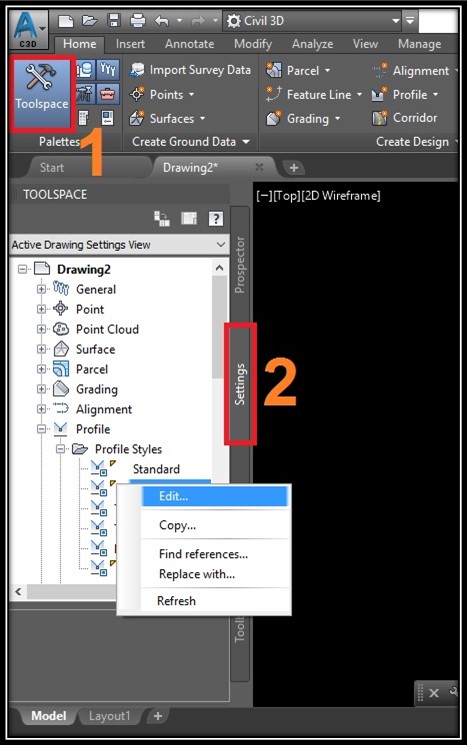 layer 0 you can easy find their styles without having to draw every object and then go into it’s settings to set things up. Just open your Toolspace and then go to Settings tab there you will find all preset settings in your drawing. Now you just have to find objects you want to edit and expand them.
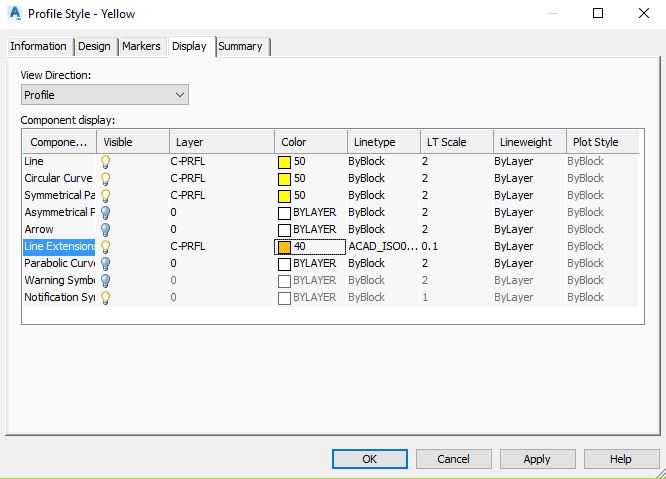
For example we want to change our Profile styles we Open Toolspace, then we go to Settings, then we expand Profiles and then we expand Profile Styles. Here we will see all saved styles just right click on a style and hit Edit… In pop up window we go to Display and here we can change our layers.
layer 0 you can easy find their styles without having to draw every object and then go into it’s settings to set things up. Just open your Toolspace and then go to Settings tab there you will find all preset settings in your drawing. Now you just have to find objects you want to edit and expand them.
For example we want to change our Profile styles we Open Toolspace, then we go to Settings, then we expand Profiles and then we expand Profile Styles. Here we will see all saved styles just right click on a style and hit Edit… In pop up window we go to Display and here we can change our layers.
Try it on your own drawing
TerraDraft Lite is free to download.